Import IBM i Sources
The Import IBM i Sources tool downloads source members from IBM i libraries into a Git repository, organized by library, source file, and member. Use it to seed a repository from an existing IBM i application, or to pull in additional sources later.
Prerequisites
- An administrator has enabled IBM i Source Import on one of the environment's repositories. See IBM i Source Import under Repositories in Environments. Only one repository per environment can be the import target.
- Your role includes the IBM i Import permission (included in the Environment Admin role).
- The IBM i system has its SSH daemon running. The tool connects directly over SSH from the CoderFlow server to run analysis and download sources.
- You have valid IBM i host, user profile, and password credentials. Credentials are held in server memory for the duration of the session only—they are never persisted.
- The user profile has authority to install the
objxsrctool the first time you connect. On first use the tool creates a library (defaultPLOBJX) viaCRTLIB, uploads a save file to that library over SFTP, and restores the tool's programs withRSTOBJ. Subsequent sessions reuse the existing library. The profile therefore needsCRTLIB(or a pre-created library named in the advanced objx Tool Library field with*CHANGEauthority) andRSTOBJauthority. If your profile can't create libraries, ask an administrator to create an empty library for the tool and grant you*CHANGEauthority on it. - The user profile has authority to discover and read the members you want to import—
*USEon the source libraries and source physical files, and*OBJOPR/*READon the members themselves. Members the profile can't read are skipped with an error in the review step.
Launching the Tool
From the main task launcher, open the actions menu and choose Import IBM i Sources.... The menu item appears only when the current environment has an import-enabled repository and your role grants the permission.
Workflow
The tool walks through four steps: Connect, Libraries, Download, Review.
How an import reaches the repository depends on the installation. The page shows the one that applies; you don't choose it.
- Through a task: the tool downloads the sources, and the last step creates a task. The repository changes when that task is approved. This is what the steps below describe.
- Directly: in CoderFlow Essentials with a CoderFlow-hosted repository, sources are written to the repository as they are downloaded, because an Essentials task cannot commit application source. There is no branch to choose and no task to launch. The button on step 2 reads Import Sources, and the last step says how many sources were imported into the repository.
1. Connect
Enter the IBM i host, user, and password. Host, user, and the advanced objx Tool Library field are remembered locally between sessions; the password is not.
2. Select Sources
Build a list of libraries, then pick what to import from each.
Library list
- Add Libraries — enter one or more library names (newline-separated). Each is validated against the IBM i. Invalid names are reported without closing the dialog.
- Remove (the trash can icon) — removes a library from the list.
- Your library list is saved on the server and restored the next time you connect to the same host.
Selecting members
Each library row starts as a simple checkbox that imports the whole library. Expanding a library fetches its source files; expanding a source file shows its members, where you can filter by name pattern and type and check individual members.
Selection is additive across filter passes: filter CUST*, check all, filter ORD*, check all → both sets end up selected. Changing the filter never clears your existing selection.
The Download Sources button enables when at least one library or member is selected. Selection counts appear in the card header (for example, 1 library + 12 members selected).
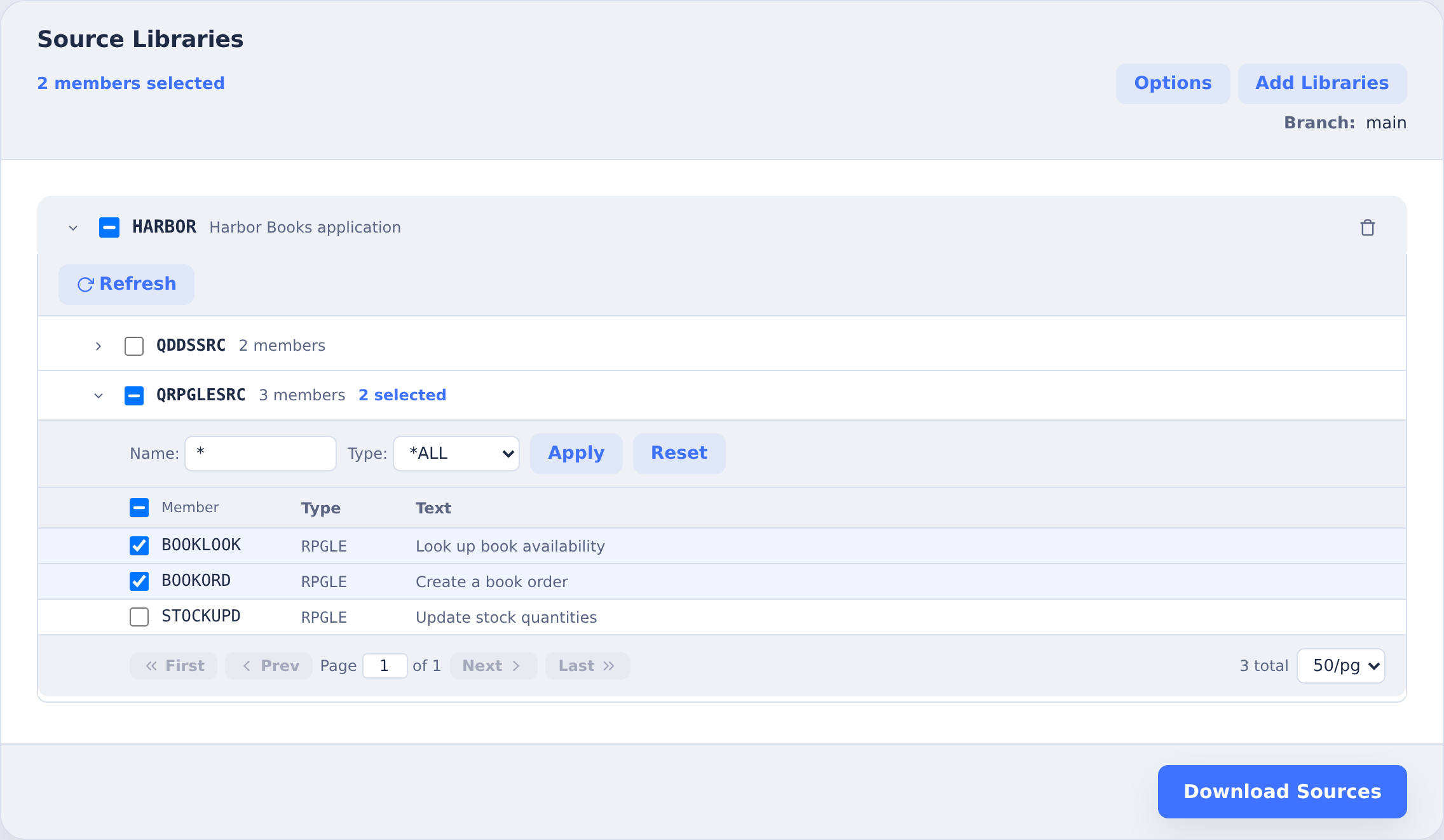
Branch
If the target repository allows branch selection, pick the branch the resulting task will run on. Otherwise the repository's configured branch is used. The Branch field is not shown when imports are written directly to the repository.
Options
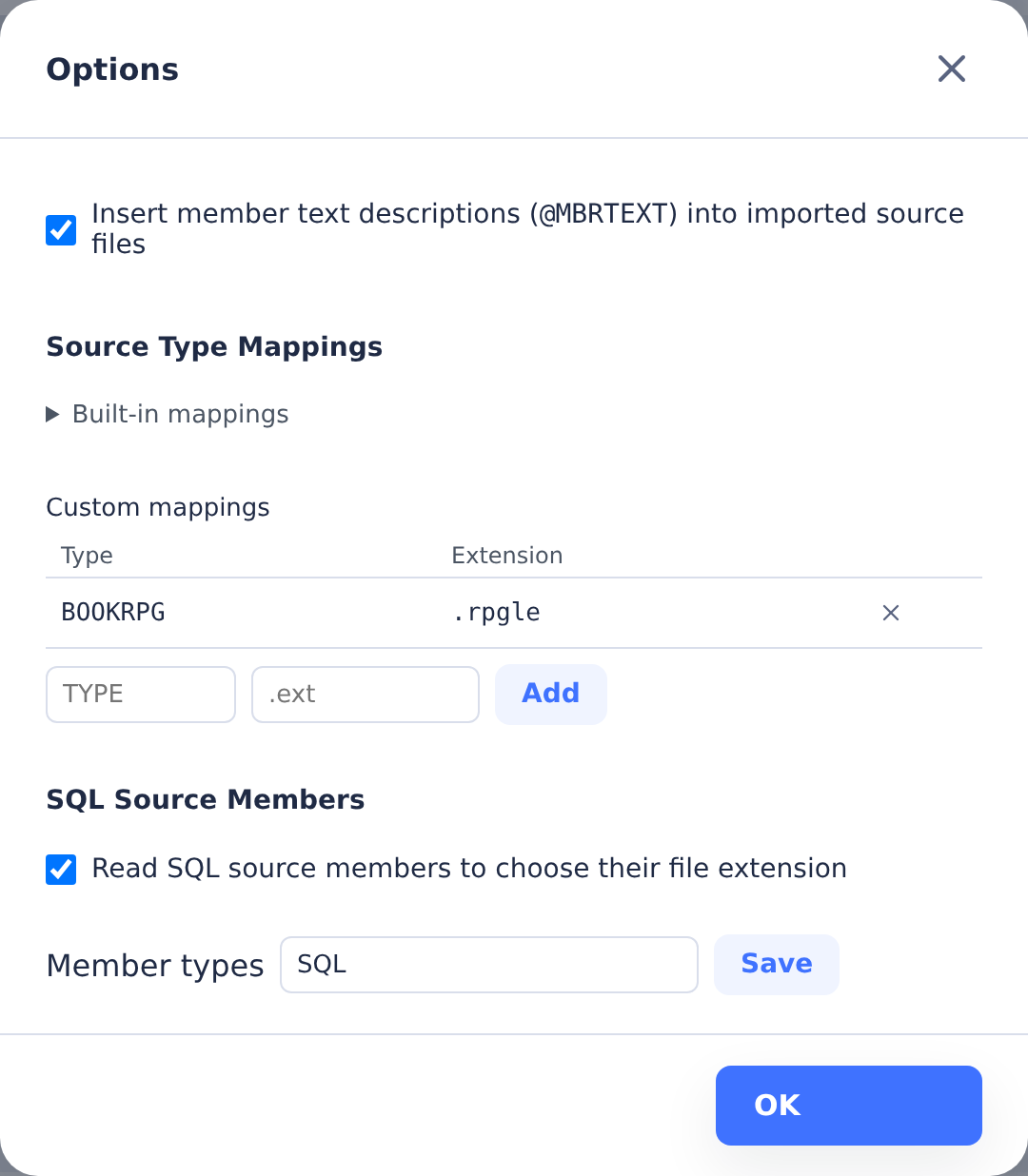
Open Options to configure import settings:
- Insert member text descriptions (
@MBRTEXT) (on by default) — inserts each member's IBM i text description as an@MBRTEXT:comment near the top of the imported source file, using comment syntax appropriate for the source type (for example,/* @MBRTEXT: ... */for CL,// @MBRTEXT: ...for ILE RPG,* @MBRTEXT: ...in column 7 for DDS and fixed-format RPG). When off, any existing@MBRTEXT:comment is stripped from imported content. This comment is what lets the Sync to IBM i feature preserve the original text description when writing the file back as a source member—sync reads the first lines of each file, extracts the@MBRTEXTvalue, and passes it as theTEXT()parameter on the member create. Files that don't carry an@MBRTEXTcomment are synced with an empty text description. - Source Type Mappings — the mapping from IBM i member type (RPGLE, CLLE, DSPF, etc.) to file extension. Built-in mappings are read-only; custom entries can be added for non-standard types, using an extension made of letters, digits,
_, or-after each dot (for example.sqlrpgleor.table.sql). Custom mappings are shared with the Build Rules tool. - Read SQL source members to choose their file extension (on by default, unless
SQLhas a custom source type mapping) — for members of the listed Member types (SQLby default), reads the SQL instead of mapping the type. A member that creates one table, view, index, procedure, function, or trigger—and otherwise only labels, comments on, or grants authority to it—is imported with the extensioncodermakebuilds that object from:.table.sql,.view.sql,.index.sql,.proc.sql,.udf.sql, or.trg.sql. A table's member can also add a primary key, unique, or check constraint to the table withALTER TABLE, or give the table its system name withRENAME TABLE … TO SYSTEM NAME; an index's member can drop the index before creating it; and a procedure's member can setCURRENT DEBUG MODEbefore creating it. A procedure or function implemented by an external program gets.proc.sqlor.udf.sqltoo: Generate IBM i Build Rules adds it to the rule of the program or service program that implements it, so it runs each time that object is built. Any other member, such as a script that changes data or creates more than one object, keeps.sql. A listed type can't also have a source type mapping. The setting applies to every import on the server, including automations.
3. Download
Progress streams live: enumerating members, then downloading. Downloaded members are collected on the server as files of the form {library}/{sourcefile}/{member}.{ext}, all lowercase. Use Back to Selection to abort and retry.
4. Review & Import
A summary shows members processed, downloaded, and any errors or warnings. Expand each section for details. The download icon in the card header exports a .tar.gz archive of the raw download metadata if you need to investigate.
A DSPF member that is a Profound UI Rich Display File or Universal Display File is imported as the .json the Profound UI designer saves, rebuilt from the JSON embedded in its HTML() keywords; codermake builds the display file from that .json. When such a member cannot be converted, it is imported unchanged as .dspf with the warning Detected Profound UI display file HTML() keywords but could not convert to JSON, which says why: for example an EJS Rich Display, whose .json source belongs in the repository, or an HTML() value that is not terminated.
When SQL source members are read, these warnings point out members to look at:
- codermake has no source type for CREATE … or … is a sourced function; codermake does not build sourced functions — the member creates an object
codermakecan't build from SQL, such as a sequence, an alias, or a sourced function. It's imported as.sql. - Could not read the SQL — the member isn't valid SQL as written, for example a statement cut short by a stray semicolon. It's imported as
.sql.
The import doesn't check what a script names: a member that names a library for the object it creates, or uses SET SCHEMA, still gets its object's extension. Generate IBM i Build Rules reports each such script that a rule runs, with the fix.
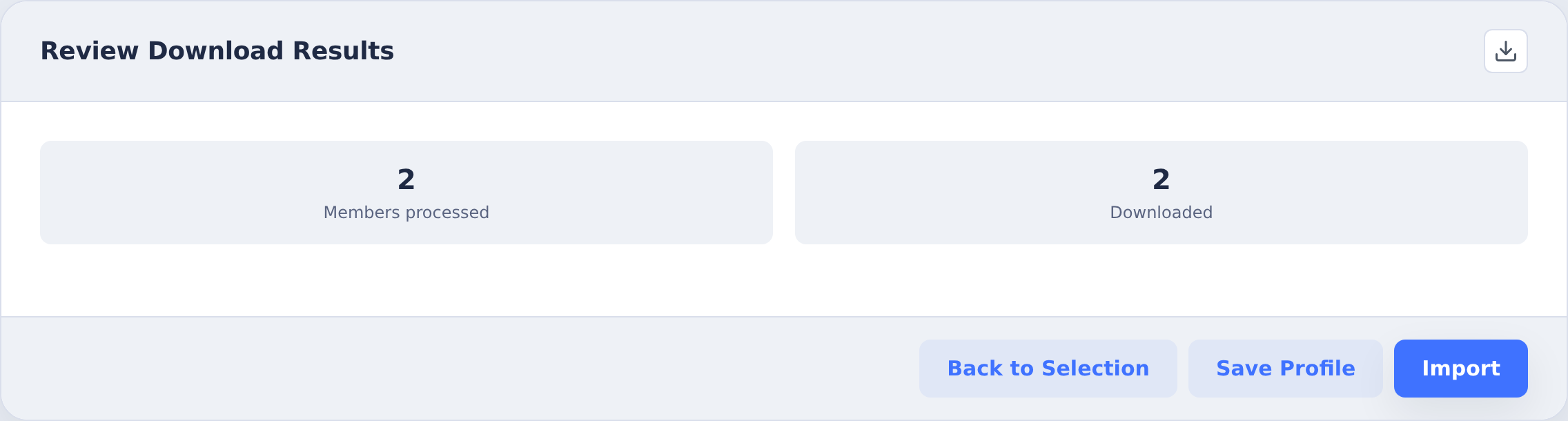
Click Import to create a task. The downloaded source tree is injected directly into the repository inside the task container, and an AI agent writes a summary and commit message. From there, use the standard approval flow to commit and push.
When imports are written directly to the repository, there is no Import button on this step: the sources are already in the repository, and the step says what happened there. It gives the number of sources imported, says so when the repository already had them unchanged, and gives the number of files removed because IBM i no longer has those members. That removal can happen even when nothing was downloaded, for example after every member of a library was deleted on IBM i; the removed files can be restored from the review. Warnings can point to files that Review imported sources and restore removals on step 2 can remove; see Keeping hosted source current.
Scheduled refresh follows the selection of the latest import. If you import only some of the libraries it was keeping current, the others stop being refreshed and a warning names them; import them together to keep all of them current. Automatic refresh also needs a saved IBM i connection: an import through a host that has none still lands, with a warning that it will not be refreshed.
Imported .dspf and .prtf files can be opened from the task in the Screen and Report Designers.
Notes on the Resulting Task
Import tasks differ from regular tasks in three ways:
- They are not resubmittable—the injected files are specific to this import session and can't be regenerated from a prompt.
- The Approve dialog's Sync to IBM i section and the task page's Sync to IBM i button are hidden. The work product is files in Git, not edits to push back to IBM i.
- The Changed Files section includes an IBM i Changes panel summarizing the import in IBM i terms: the source libraries, changed source members, and changed build-rule objects, each tagged Added, Modified, or Deleted. For a task an IBM i Import automation created, each listed object also shows what the run did for its build rule, and objects whose regenerated rule was identical are counted rather than listed. See IBM i Changes.
- Otherwise, review, approve, and push the commit through the normal task UI.
When an import task has a stored sync-run summary, IBM i Changes shows the member changes by name.

Keeping hosted source current
For a CoderFlow-hosted source repository, imports record which IBM i member owns each imported file. Essentials' managed refresh can remove a deleted member's unchanged imported copy after verifying its absence and authority on IBM i. Connection failures, incomplete listings, changed scope, edited files and uncertain ownership prevent automatic deletion and leave the content for review. Successfully downloaded members still replace their repository copies using the existing IBM i source preference, including files imported before ownership tracking. This does not change source on IBM i or allow Essentials tasks to edit application source.
After connecting in Import IBM i Sources, choose Review imported sources and restore removals to inspect stale content. Eligible removals are unchecked by default; select the exact files you intend to remove. Older imports without ownership records require this review instead of automatic removal. A changed repository or expired preview requires a fresh review. Large backlogs are handled in batches.
Temporary source files
Whole-library imports skip the temporary source files EVFTEMPF01 and EVFTEMPF02.
Copies imported by an earlier version stay in the repository and are no longer
refreshed. The review lists them as Temporary file. You can select and remove
them without CoderFlow checking IBM i first: the copy is stale whether or not the
member still exists there. They are never removed automatically, and a removal
can be restored like any other.
Removing a library, and importing it again
Removing a library from the import list asks what should happen to files already imported from it. Keep the files is selected by default; confirm with Keep files and stop importing. To remove content too, choose Remove selected files and select the exact files. Either way the library is detached: scheduled source updates skip it, and its files show Library detached in the review and cannot be selected there.
To import a detached library again, do one of the following:
- In CoderFlow Essentials, add the library to the list and import it. The import updates the repository and resumes scheduled updates for the library.
- In the review dialog, choose Resume importing next to the library under Libraries no longer imported. No files change. Its files can be reviewed again, and the next scheduled refresh updates the library, including changes made on IBM i while it was detached. This needs the library to be part of the saved selection of a scheduled refresh; if none covers it, import it again to bring it up to date.
- Restore the library's removal record, described below. This brings its files back and resumes importing it.
A library that was removed with an earlier CoderFlow version may have missed changes made on IBM i since then. After resuming it, import it again once.
Restoring removals
Removals are recorded in Git. The review dialog lists removal records, newest first. Each shows the library, what the removal was (a library removed, files removed in review, or files removed by refresh), the number of files, the date and who removed them. Restore restores that record's source without overwriting newer files. Restoring a library removal also resumes importing the library. Restored owned sources are retained for review rather than automatically deleted again. Keep normal repository backups and Git history for recovery. Existing tasks and generated documentation can still contain older material; review the refreshed documentation and use a fresh task checkout to see the updated source tree.
These maintenance actions require an active import session and the environment's IBM i import and task-creation permissions. They apply to hosted repositories; external Git repositories retain their existing import and approval workflow.
The review compares imported files with the selection that scheduled refresh uses. Where CoderFlow keeps no such selection, it compares them with what is selected on the page; with nothing selected, every file is shown as Outside selection. Files that reached a hosted repository through a task have no ownership record: once IBM i confirms a member is gone they are listed as Ownership unknown and can be removed explicitly, never automatically.
If source was imported under another IBM i account, automatic removal stays blocked. You can explicitly select those files after verified absence in source review, or in the library-removal preview. Removing an unimported library from the browse list creates no repository commit. If review is unavailable, removing the browse row keeps repository files and saved refresh settings; the page reports that limitation.